Managing a PostgreSQL DB with Docker Compose and VS Code
Run and manage PostgreSQL in Docker Compose and connect it with the VS Code PostgreSQL extension.
In May 2025, Microsoft announced the release of its PostgreSQL extension for Visual Studio Code, an IDE widely used in the industry. The purpose of this extension is to make it easier for software developers to manage databases with this engine, with a familiar interface such as VS Code.
Our Data Base course bets for this new extension, leaving aside PostgreSQL clients such as PGAdmin, and we use an old acquaintance as VS Code. In addition, we also bet with the use of Docker to raise our databases in local environments, thus gaining portability, consistent environments, isolation, scalability and simplified management. In this blog we will see how to build a Database using Docker Compose and how to use the Microsoft extension in VS Code to query the Database.
Initial Setup
You must have Docker and Docker Compose installed on your computer, and obviously we will use VS Code.
For this blog, we will use a Pokemon Database that we will find in the following link (note: it is made in MySQL, so we adapted the scripts to be able to use it in PostgreSQL, but we wanted to leave the credits to the original idea).
NOTE: You can find all the scripts I use in this blog in the repository at the following link
In the root of the project, we create a file called docker-compose.yml, which will have the following content:
services:
  pokemon-db:
    image: postgres:latest
    restart: always
    environment:
      POSTGRES_DB: pokemon_db
      POSTGRES_USER: admin
      POSTGRES_PASSWORD: admin
    ports:
      - "5432:5432"
    volumes:
      - pgdata:/var/lib/postgresql/data

volumes:
  pgdata:
By running this script, we set up a Docker container to run our PostgreSQL database.
Starting the Database
- Execute in a terminal the command docker compose up -d.
- Wait a few seconds to finish the build, and once the DB is up we will see this in the terminal:
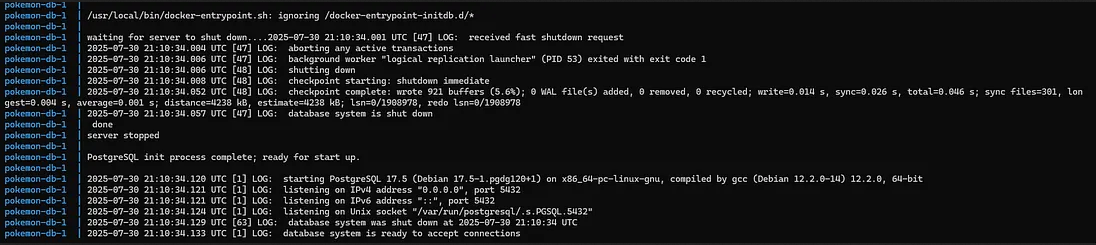 Docker Compose running successfully
Connect to the Database with the extension
-
Open the extension in VS Code. If you did not install it, I leave you the official site of the extension so you can install it.
-
Once inside the extension (and always with our DB turned on), we create a new connection:
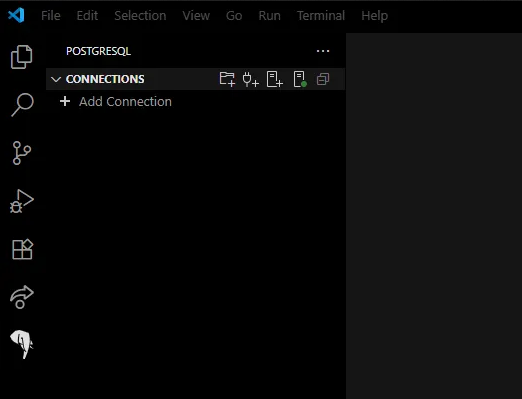 Creating a new connection in the VS Code PostgreSQL extension
- Enter the Database credentials:
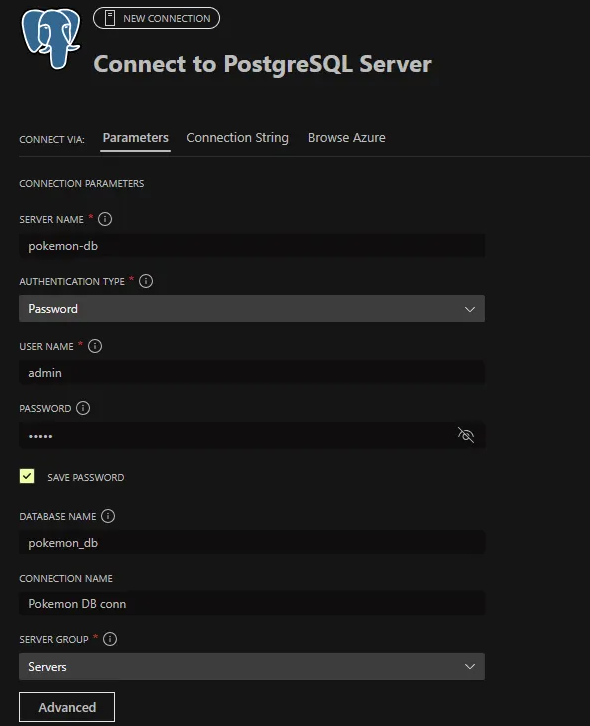 Entering PostgreSQL database credentials
- IMPORTANT: We must configure the advanced options.
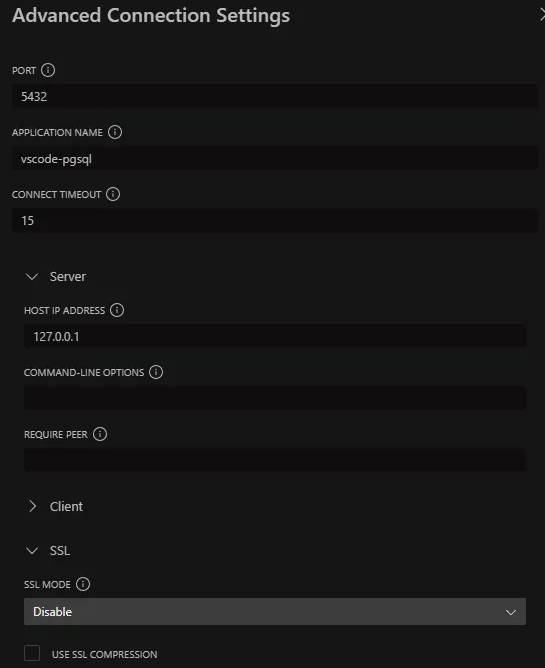 Configuring advanced connection settings in VS Code
Specify the port (in our case, we are running the DB on port 5432), the host IP (localhost, which is 127.0.0.1), and we disable the SSL mode (for god’s sake don’t do this in prod, it’s a toy example of this).
- Now, if we test the connection and it works, we click on save & connect, and we will connect to the Database.
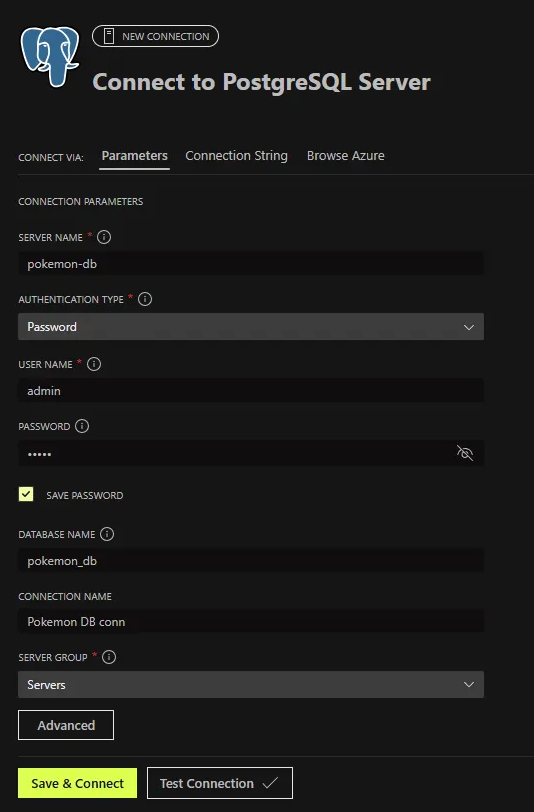 Testing and saving the connection to the database
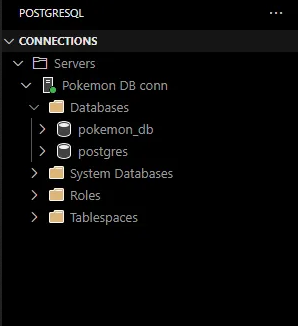 Connected servers displayed in the VS Code PostgreSQL extension
Now the extension will show us the server to which we are connected, and we will be able to see our DB.
- This DB will be empty for the moment, so we will have to populate it with data. By right clicking on the DB, and clicking on New Query, we will be able to create our first query for the DB. We insert the SQL script to populate the DB, and run it from the same VS Code.
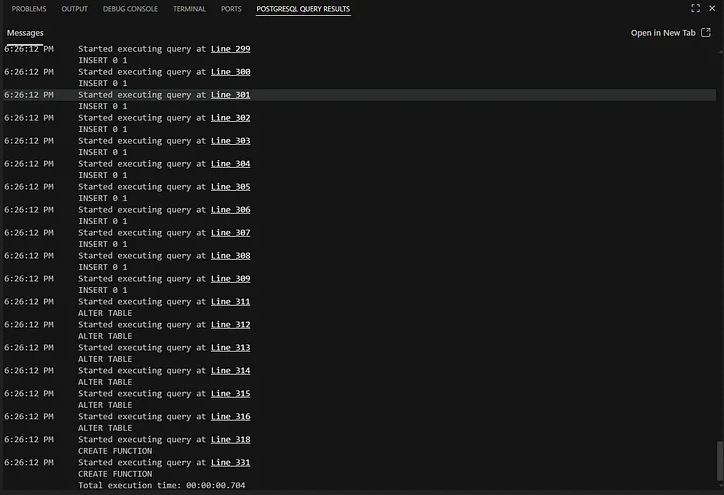 Populating the database with initial data using SQL script
With this we will have created the tables of the Database, and we can visualize them by right clicking on the DB, and entering Visualize Schema. We will see with this a diagram of the tables:
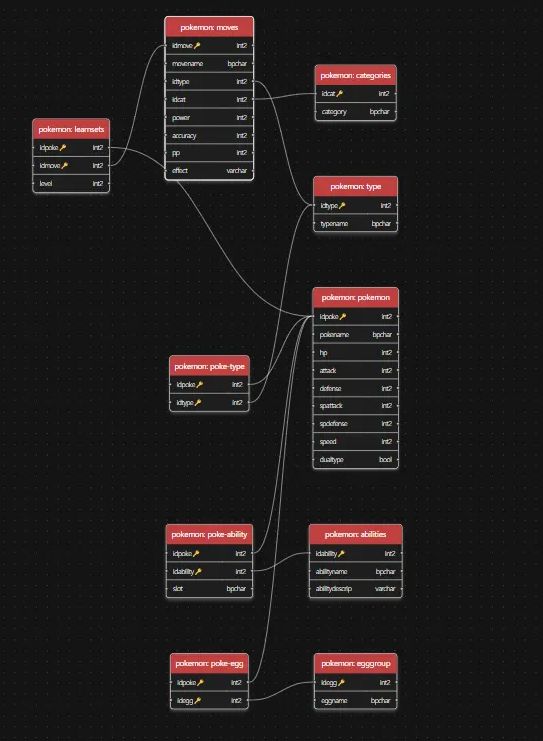 Visualizing the database schema diagram in VS Code
And obviously we can run queries against the database:
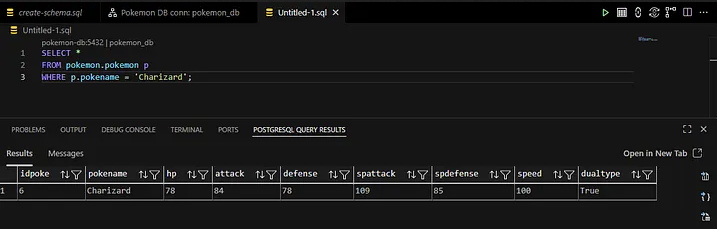 Running the first SQL query against the PostgreSQL database
That’s it! With this we have been able to raise a PostgreSQL Database using Docker Compose, and being able to manage it with the PostgreSQL extension for Visual Studio Code.